
How to make Windows 10 Bootable USB Flash Drive (With CMD)

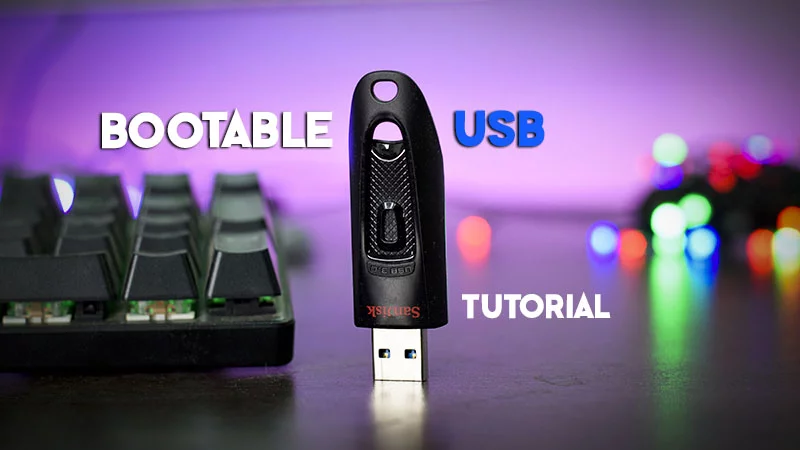
How to make a Windows 10 Bootable USB Flash Drive
OK Guys!! You are searching for How to make a windows 10 bootable USB flash drive for you new PC or Laptop Right !! In this tutorial you will learn not only making windows 10 USB drive, using this process you can make a Windows 11, 10, 7, 8, 8.1 bootable media. The most interesting thing about my tutorial is, you don’t have to install any single software on your computer. I will show you how to make a bootable USB drive without any software.
Let’s create bootable media with CMD, you just need any working computer nearly and a USB flash drive with at least 8GB of storage memory. I am using command prompt for this operation which is already comes with any windows.
Using command prompt is a better way, because you don’t have to download any additional software for it. All you can do it without internet connection or offline. Below are the steps to create the media:
Step 1: Insert a empty USB flash drive to your computer. (Backup files from USB first)
Step 2: Type CMD in cortana in Windows 10 or if windows 7 search in start menu.
Step 3: After typing or searching you will find command prompt, just right click on it and open it as administrator.
Step 4: Inside the command prompt just type “diskpart” and hit enter.